Accepting payments with lava.top
A step-by-step guide: connect your lava.top account to CreateYourVPN so a client's payment turns into a subscription on its own — API key, the webhook, mapping offers to your plans.
lava.top is a payment provider that accepts cards, SBP and PayPal in roubles, dollars and euros. Connect it once, and a payment on your storefront turns into an active subscription by itself — you don't have to grant anything by hand.
The money goes to your own lava.top account. CreateYourVPN is not a middleman in the payments and takes no commission on your sales.
Accepting payments is available on the paid Max tier — this tier enables sales on the storefront. See the billing lesson for platform pricing.
What you'll need
- an account on lava.top (an "author" account — the one that sells);
- 10–15 minutes for the initial setup;
- a small amount for a test payment: lava.top has no test mode, so the only way to check the setup end to end is a real purchase (the minimum is 50 ₽ / 5 $ / 5 €).
Step 1. Register and verify
Sign up at lava.top and fill in your profile — an empty profile makes your payment page look unfinished to the buyer.
Then go to Balance → verification and pass it: a document and a selfie, 18+, without a VPN turned on.
You can sell before verification, but you cannot withdraw money without it. Don't leave it until your first payout.
Step 2. Create your products
In lava.top, create one or more products for the plans you sell. Every CreateYourVPN plan needs a matching offer, but one lava.top product can contain several offers — for example, monthly and yearly billing.
- For a recurring plan, choose the "Subscription" product type — lava.top will charge the client automatically, and every renewal will extend access with us.
- For a one-off purchase, use a fixed-price digital product, course, or consultation.
- Make sure the offer has a price in at least one supported currency: RUB, USD, or EUR. The plan's currency is selected by default on the storefront, but the buyer can switch to any other currency available in the offer.
- Match the billing period to the plan's duration: monthly product ↔ 30 days, 90 days ↔ 90, and so on.
- Hide the products from your public lava.top page using hidden visibility. Do not enable "Price on request via API": CreateYourVPN currently works with fixed-price offers. A purchase made straight from your lava.top page arrives without our marker, so we may not be able to identify the plan; such a payment lands in the journal as "Unmatched" and waits for manual linking. Hidden fixed-price products still appear in our offer picker.
An offer is a way to sell a product with a particular price and billing period. A product can have several offers — you will select the matching one for each plan in the next step.
What a repeat purchase does
A one-off product has no renewals: when the client needs more, they simply buy it again. That is a normal flow, and it is safe to do early — the days are added on top of whatever the client still has left, not counted from scratch. Ten days remaining plus a fresh month gives forty days.
One exception, if your plan also grants traffic: the quota is replaced, not summed. A client who bought 100 GB, spent 30 and buys the same plan again ends up with a fresh 100 GB, not 170. Keep it in mind when you price traffic plans.
Step 3. Connect the account in CreateYourVPN
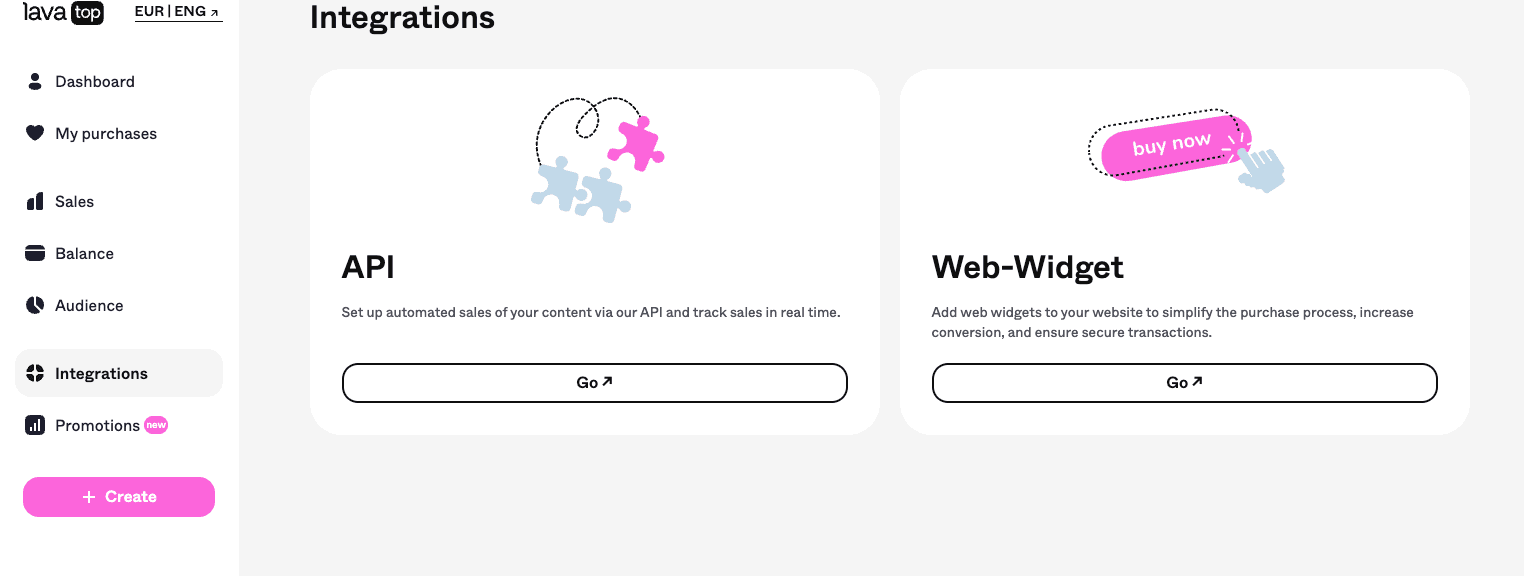
Everything on the lava.top side lives in one place: Integrations in the left-hand menu, the API card.
Create an API key
Open the API card and press "Create API key". The key is shown once — copy it right away; lava.top never shows it again, and a lost key can only be replaced by a new one.

Paste the key into your cabinet
In CreateYourVPN open Monetization, press "Connect" on the lava.top card, paste the key into the "lava.top API key" field and save.
We check the key immediately and answer either "Key accepted" — with the number of products found in your account — or "lava.top didn't accept this key".
Right after saving, two more values appear in the same form: the webhook URL and the webhook key. They're what you paste into lava.top in the next step. The webhook key is generated by us — you don't have to invent one.
Add the webhook
lava.top offers this right after the key is created — press "+ Add Webhook". The same button is available later on the API page.
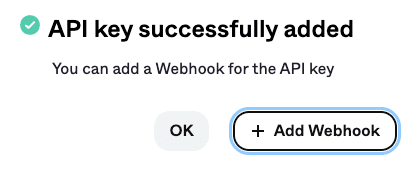
You only need one webhook — the event type field takes every type you need at once:
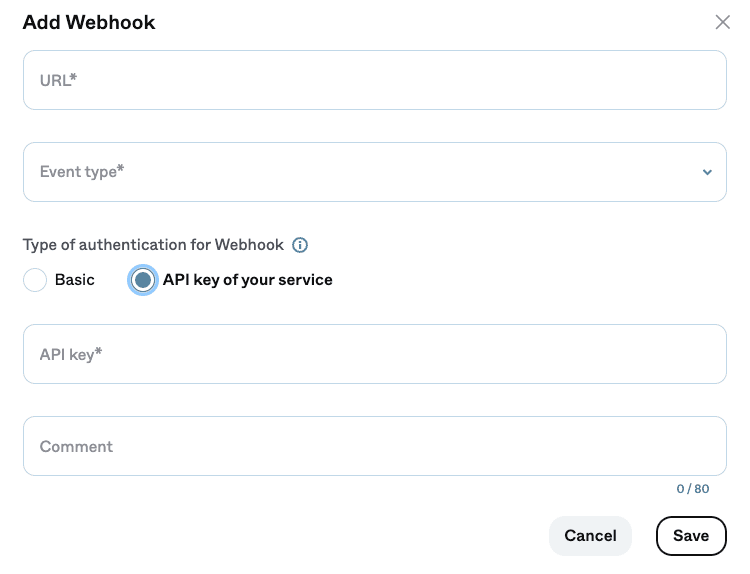
URL — the webhook URL from your cabinet. lava.top only accepts HTTPS; ours already is.
Event type — tick both types: "Payment result" and "Recurring payment". The list is multi-select, so a second webhook is not needed.
Type of authentication for Webhook — choose "API key of your service" and paste the webhook key from your cabinet into the API key field. (Basic works too — we accept it — but that's two fields instead of one.)
Comment — optional, for yourself: something like "CreateYourVPN — payments" helps when you have several integrations.
lava.top does not provide a cryptographic signature for the request body, so the webhook key authenticates the delivery — treat it like a password.
Do not untick "Recurring payment" if you sell subscriptions: without that event type renewals never reach us and a paying client's access simply runs out. For one-off products "Payment result" alone is enough, but leaving both ticked is safe.
What the API key gives us
lava.top has no read-only keys — an API key grants full access to the author account. We use it for exactly three things: creating a payment when a client clicks "Pay", reading your product catalogue for the offer picker, and cancelling a subscription when a client switches off auto-renewal in their cabinet. We never change prices, never export your sales and never touch anything else. The key is stored encrypted, is never shown again and never appears in our logs. If you ever want to cut access off, remove the connection in the cabinet — the key is deleted with it.
Step 4. Map offers to your plans
Open Plans, edit a plan and find the lava.top block:
Press "Load products" — we pull the catalogue from your lava.top account.
Pick the offer this plan is sold as. The list shows the product, the price and the billing period.
Check the warnings, if any. The cabinet will tell you when the offer has no price in the plan's currency, or when the billing period doesn't match the plan's duration ("charges every 30 days, but the plan grants 365").
Just created a product in lava.top and don't see it in the list? Press "Refresh list" — the catalogue is cached for a minute.
The buyer can switch between all currencies available in the selected offer. For a one-off payment in roubles, we show card and SBP; for a rouble subscription, only card. In dollars and euros, we show card and PayPal.
Step 5. Check it with a real payment
Buy the cheapest plan yourself, from a client account on your storefront. Within a minute the plan should appear in that account, and the payment should show up as Processed in the payment journal (Monetization section).
If it doesn't:
- the event is not in the journal at all — the webhook in lava.top points at the wrong address, does not have the event types ticked, or its key does not match the one in the cabinet. lava.top keeps a webhook history with a resend button — a good place to look;
- the event is there, but "Unmatched" — we couldn't tell whose payment it is or which plan it's for. Link it by hand right in the journal: the subscription will be granted by the same code as an automatic payment;
- "Needs attention" — the payment needs a human decision: the client is blocked in your cabinet, or the plan has been re-pointed to a different lava.top product after the payment was created. We never revoke access on our own here — the decision is yours.
If a subscription renewal cannot be charged, lava.top makes two more attempts — after 8 and 24 hours — and sends the failed-payment notification only after the final attempt. We do not revoke access because of a failed charge: the already-paid period always runs to its end. A cancellation notification only tells us not to expect another renewal.
Money matters
- lava.top's commission is 8 % of every successful payment. It is taken immediately and is not returned if you later refund the client.
- Refunds are made from the lava.top dashboard, in the Sales section; a refund on a subscription cancels the subscription. Refunds and chargebacks do not have a webhook type of their own in lava.top yet, so you'll see them in your lava.top dashboard rather than in our journal.
- Cancelling auto-renewal. The client can do it themselves in their cabinet on your storefront — we ask lava.top to cancel the subscription — or in their own lava.top account; you can also cancel it for them from your lava.top dashboard. A cancellation does not take access away: it runs to the end of the period the client has already paid for, and we simply stop expecting the next renewal.
- A chargeback can be raised up to 540 days after the payment, and you have 3 days to submit evidence. Keep your terms of sale, correspondence with the client, and proof that access was provided.
- Payment limits depend on the product type. The minimum is always 50 ₽ / 5 $ / 5 €. For subscriptions, the maximum is 300 000 ₽ / 3 000 $ / 3 000 €; for one-off products, it is 1 000 000 ₽ / 10 000 $ / 10 000 €.
If a key leaks
Two separate buttons on the lava.top card, and they do different things:
- "Rotate webhook key" — issues a new key for incoming notifications. Paste the new value into the webhook in lava.top; until you do, payments won't be confirmed.
- "Rotate webhook URL" — issues a new address. The old one stops working immediately; update it in the webhook too.
If the API key itself leaked, revoke it in lava.top, create a new one and paste it into the cabinet.