How to buy a server on HostVDS
A step-by-step guide with screenshots: how to create the cheapest VPS on HostVDS with an unlimited 10 Gbps network on a fresh Ubuntu, and set a simple root password for connecting to CreateYourVPN.
We don't recommend HostVDS right now. Many of this provider's IP addresses are already blocked, so a VPN on such a server may simply not work.
The guide is still useful, though: treat it as a general walkthrough for ordering a VPS anywhere. At about 95% of hosting providers the steps look exactly the same: sign up, top up your balance, pick a plan and a location, install a fresh Ubuntu and set a root password.
HostVDS is a low-cost virtual server provider: prices start at around $1 per month, a server spins up in under a minute, and you pay from a top-up balance (monthly or hourly). It has data centers in Europe, the US, and Asia. For a personal VPN, that's more than enough.
In this guide we'll order the cheapest server, but with an unlimited network, install a fresh Ubuntu, and set a simple root password — exactly what you need to connect the server to CreateYourVPN in a couple of minutes afterward.
This is a preparation step. Once the server is ready, move on to the How to set up your server guide — that's where you'll enter the IP address and password you get here.
Step 1. Sign up
Open hostvds.com and click "Sign up".
Enter your email and a password, then confirm the registration via the email you receive. After that you'll land in your account dashboard.
Step 2. Top up your balance
HostVDS charges from an internal balance, so you need to top it up once.
In the dashboard, find the "Balance" or "Add funds" section.
Top up a small amount. You can pay by card or another available method.
When topping up, you can enter the promo code HVDSFT5 — it adds a small bonus to your first payment. This step is optional.
Step 3. Create the server
Click "New Server". A page with several blocks opens — let's go through them top to bottom. A green check ✓ next to a block's title means the choice is made.
Region
Pick a data center — the country your server will "sit" in. It determines which sites open without restrictions. For a VPN, a good neutral choice is Europe: Paris, Amsterdam, or Riga.
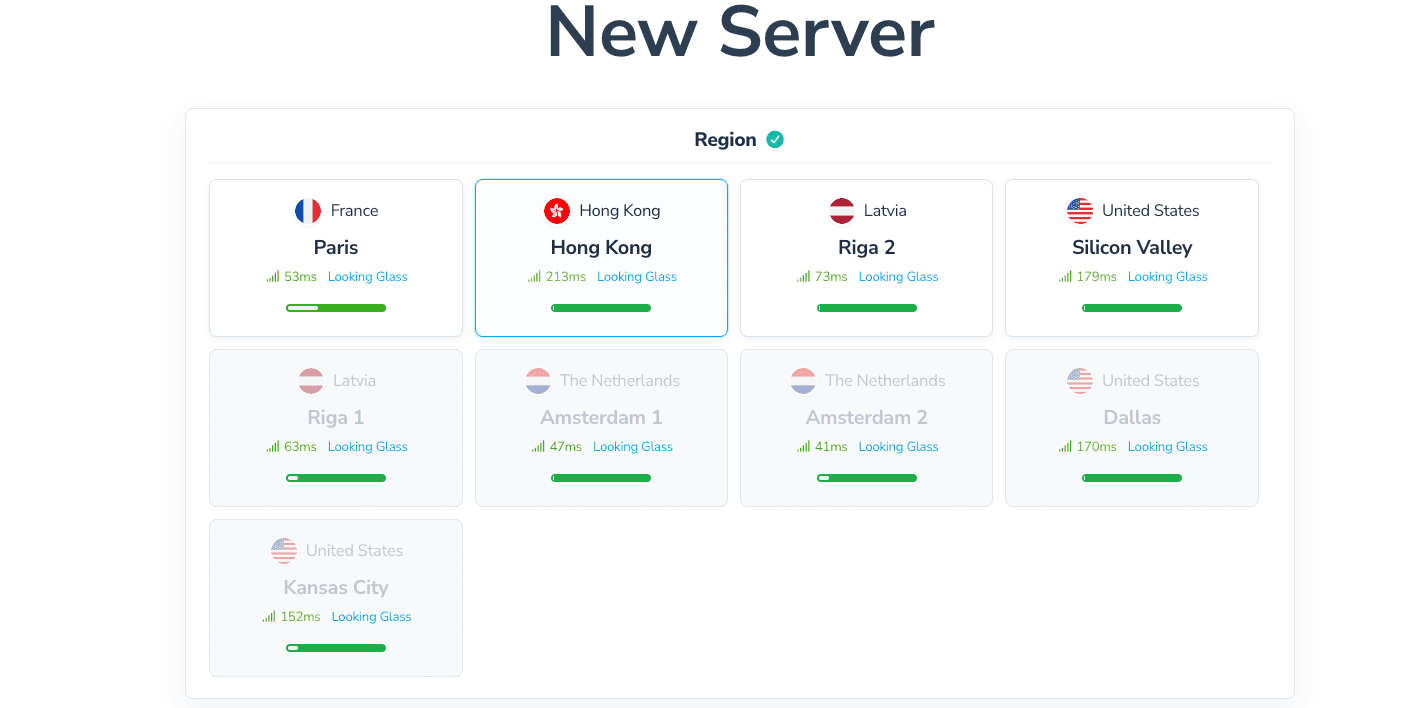
Grayed-out locations are currently out of stock — pick an active card. The number in milliseconds (ms) is the ping from you to the data center: lower means a snappier response.
Plan
Keep the toggle on "Burstable" and pick the cheapest option — $0.99/mo: 1 CPU, 1 GB RAM, 10 GB NVMe. That's enough for a personal VPN.
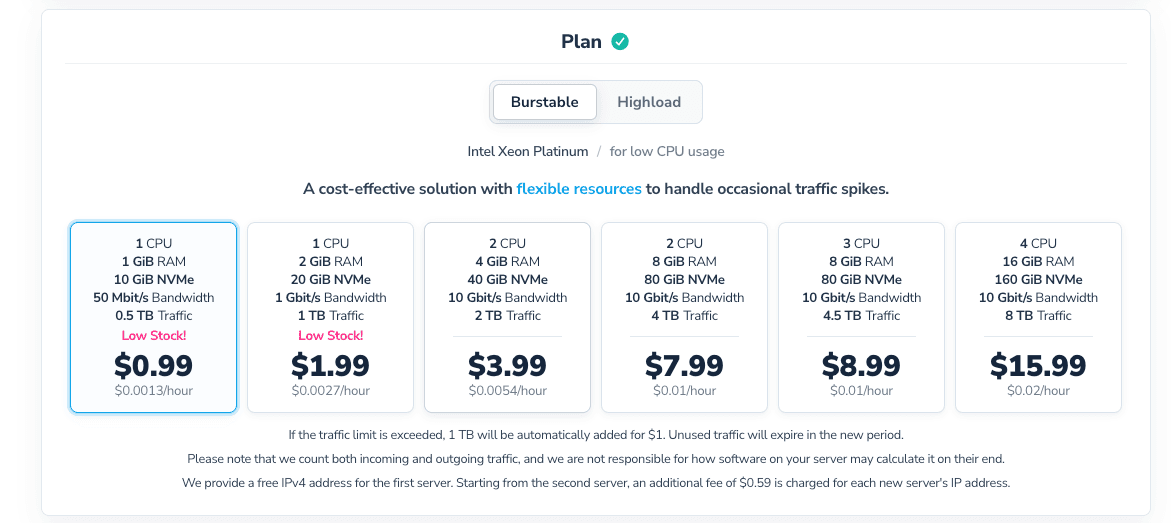
The exact price depends on the location (data center) and the configuration (server specs) you choose, so your numbers may differ slightly from the screenshot — that's completely normal.
Don't worry about the "50 Mbit/s Bandwidth" and "0.5 TB Traffic" lines in the plan card — we'll replace that with an unlimited network in the next step.
Network plan
This one is important. Choose "Unlimited Shared 10 Gbps": unlimited traffic (∞) and speeds up to 10 Gbps. It costs about $1.99/mo.
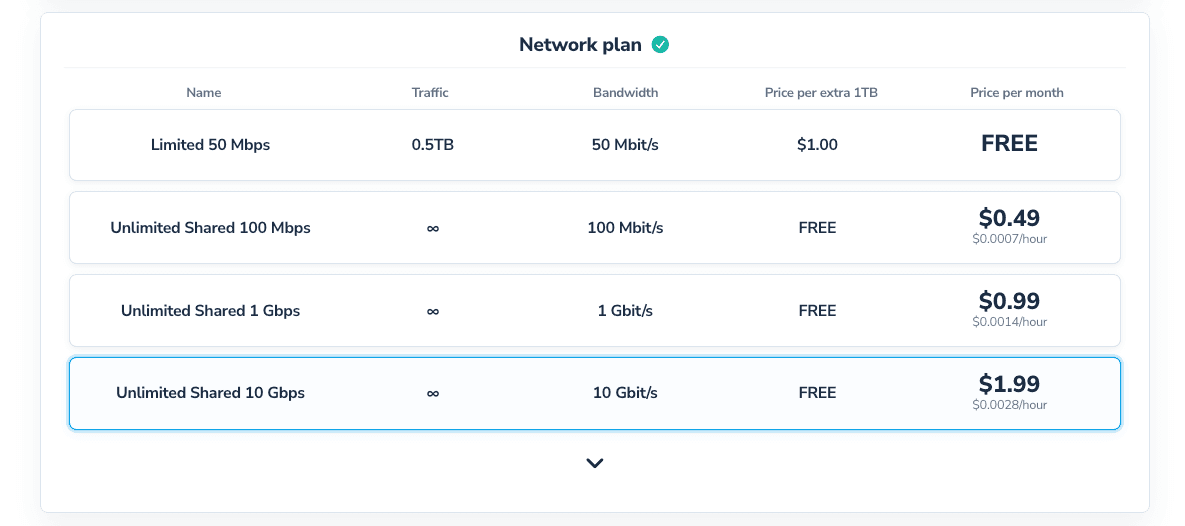
Don't leave it on "Limited 50 Mbps". It has a traffic cap of just 0.5 TB — a VPN burns through that very fast, and the internet "stalls". Pick the unlimited Unlimited Shared 10 Gbps instead.
Operating system (Image)
On the "Operating Systems" tab, choose Ubuntu, and in the VERSION field pick the latest version, 24.04. Leave the other systems and the "Applications" tab alone — you want a clean Ubuntu image.
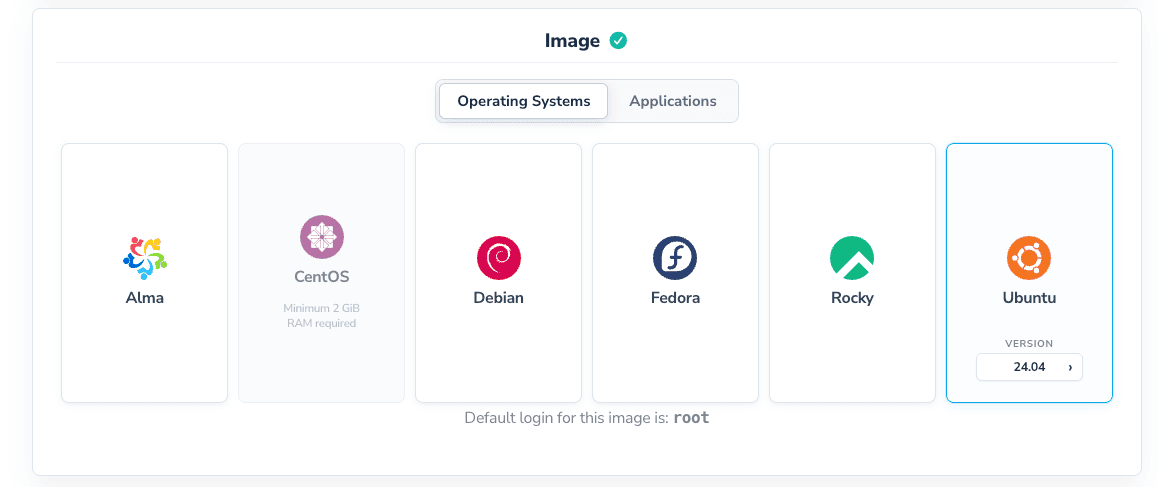
Below the cards it says "Default login for this image is: root" — meaning the server's main user is called root. You'll need it when connecting to CreateYourVPN.
SSH key and server name
Two small blocks remain at the bottom of the page.
- SSH Key — choose "No SSH Key". That way you log into the server with a password, which is exactly what CreateYourVPN needs.
- Hostname — type any name for yourself (e.g.
AMS-1). It doesn't affect anything. - IP Address — leave it on "IPv4".
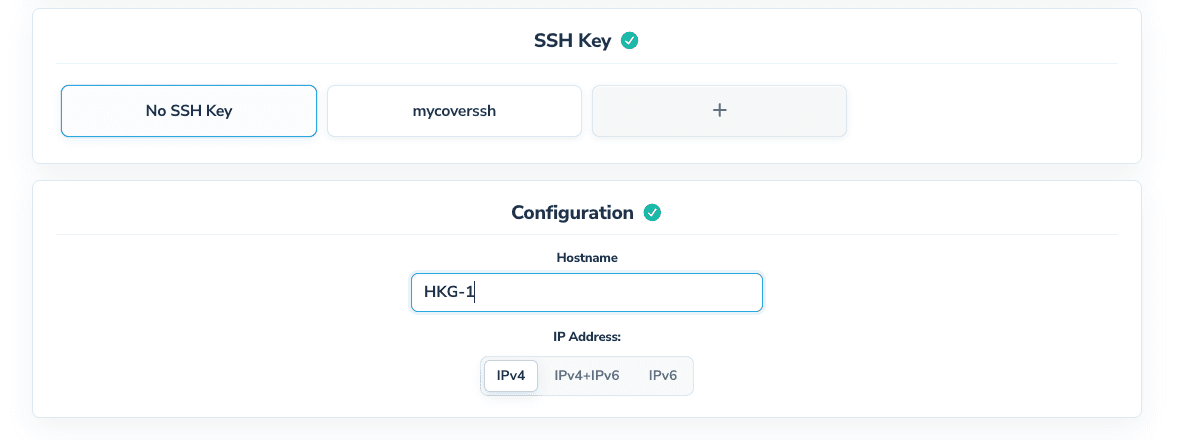
Be sure to pick "No SSH Key". If you attach an SSH key, the provider may disable password login — and CreateYourVPN won't be able to connect to the server.
Now click the "Create" button at the bottom of the page. The server will be ready in 30–60 seconds.
Step 4. Grab the IP address and password
Once the server is up, open its page in the dashboard.
It will show the server's IP address and a generated root password. These are your login details.
Step 5. Change the root password to a simple one
The generated password is usually long and complex — inconvenient to type by hand. Let's set a simple one that's easy to enter.
On the server's page, find the "Security" block, the "Access" section inside it, and the "Change root password" link.
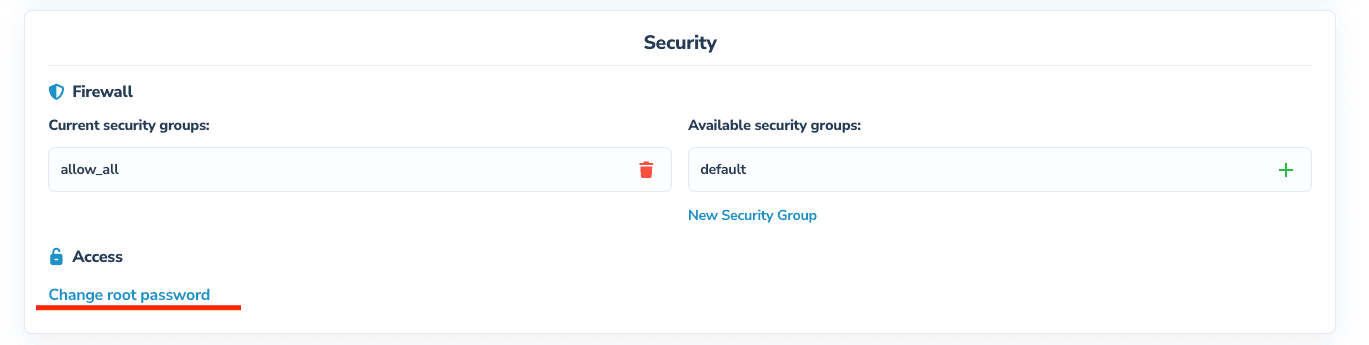
Enter a new simple password twice (in both fields) and click "Save new password". Done.
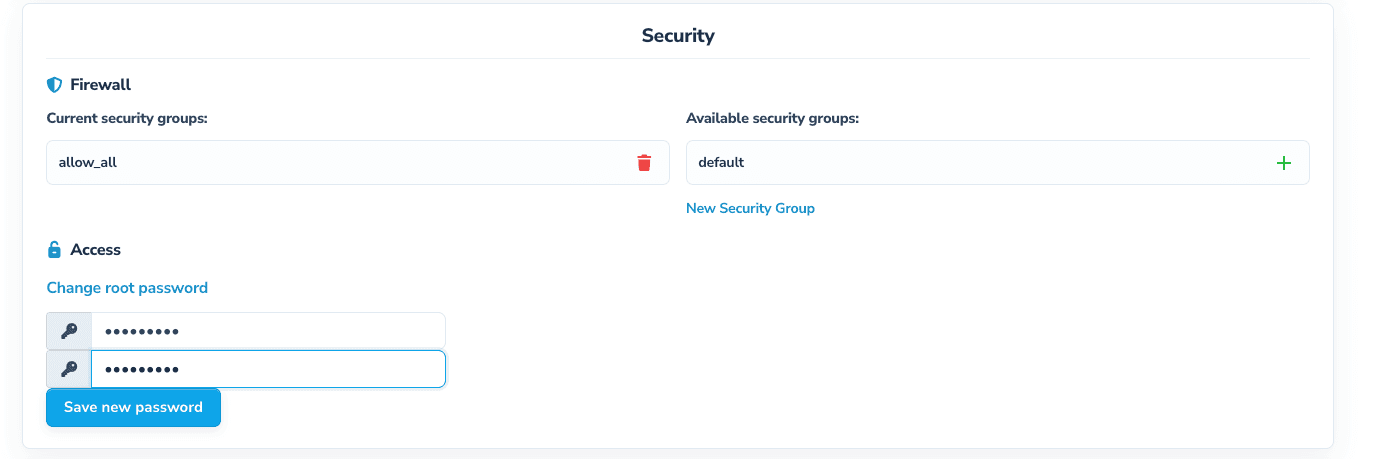
A simple password is not a risk here: when connecting, CreateYourVPN uses it only once, then switches the server to secure key-based access and disables password login. So connect the server to CreateYourVPN soon after buying it — don't leave it sitting with a simple password "as is" for long.
Done — what's next
Now you have everything you need: an IP address, a root password, and port 22.